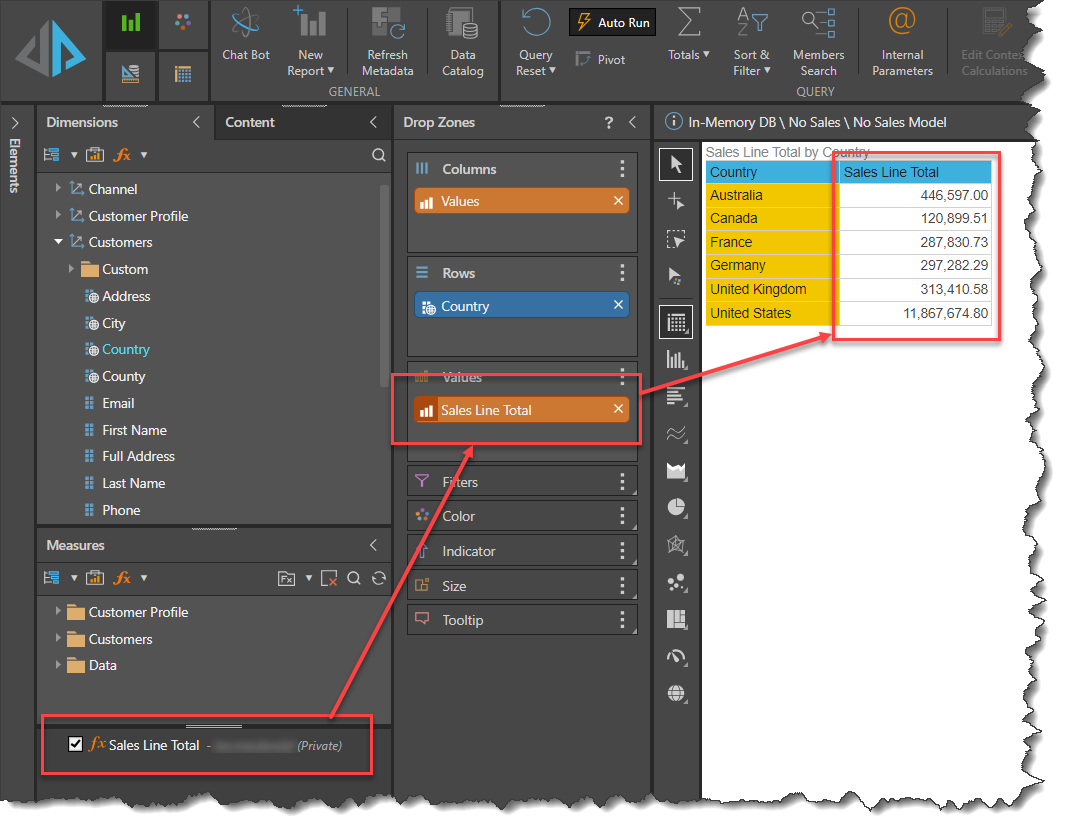
In this example a new Model Measure, [Sales Line Total] will be created based on two existing numeric attributes, [Quantity] and [Price]. this is a case of simple multiplication, but the multiplication calculated at the row level of the underlying table, calculating the [Sales Line Total] from each product's [Quantity] and [Price], resulting in the correct aggregated sales totals are calculated in the Semantic Model.
Step-by-step example
Before you begin
You need to open Formulate and then open the Custom Column editor. For more information, see Custom Column Examples.
Step 1
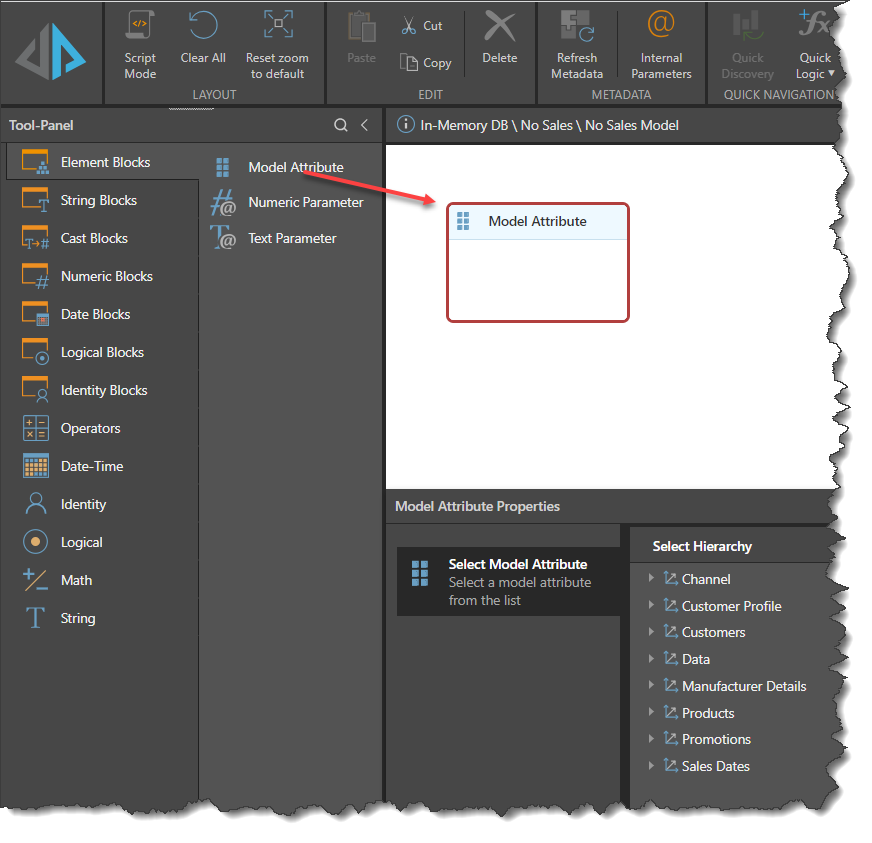
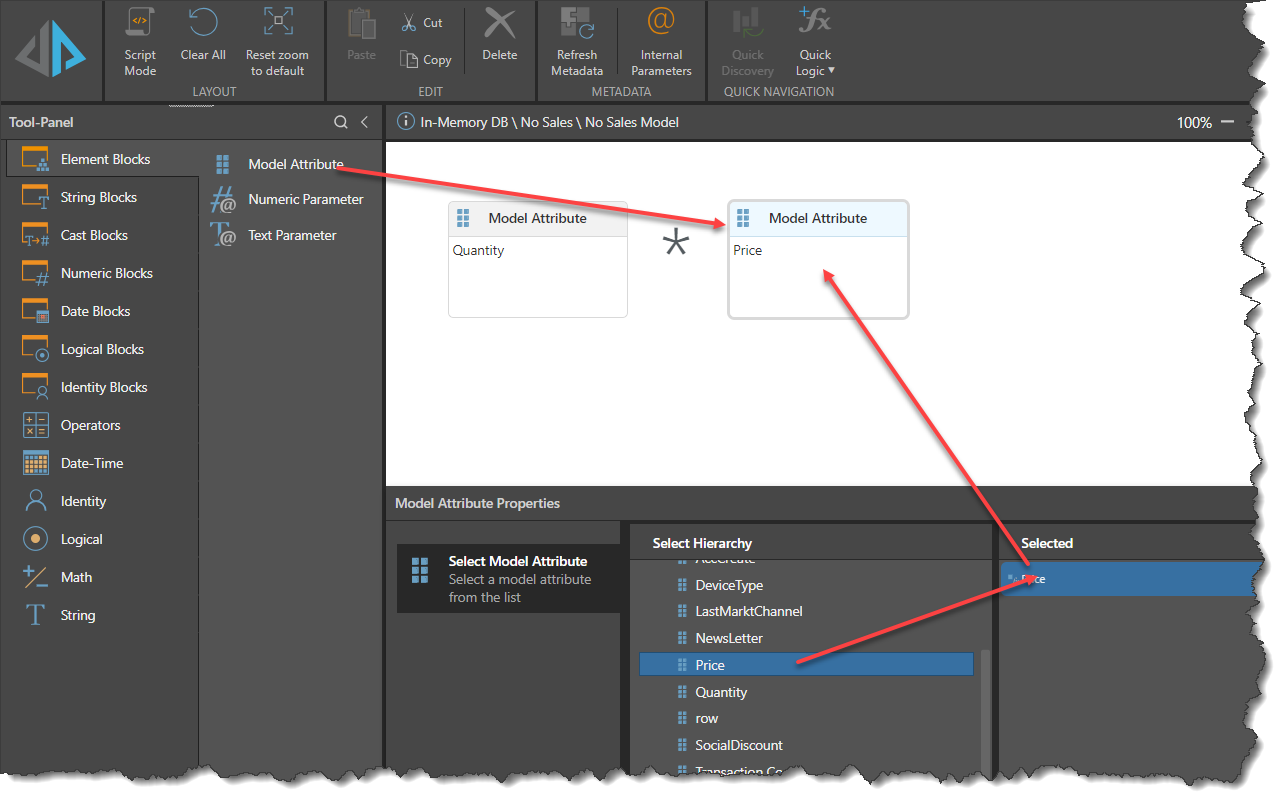
Drag a Model Attribute block onto the canvas:
Step 2
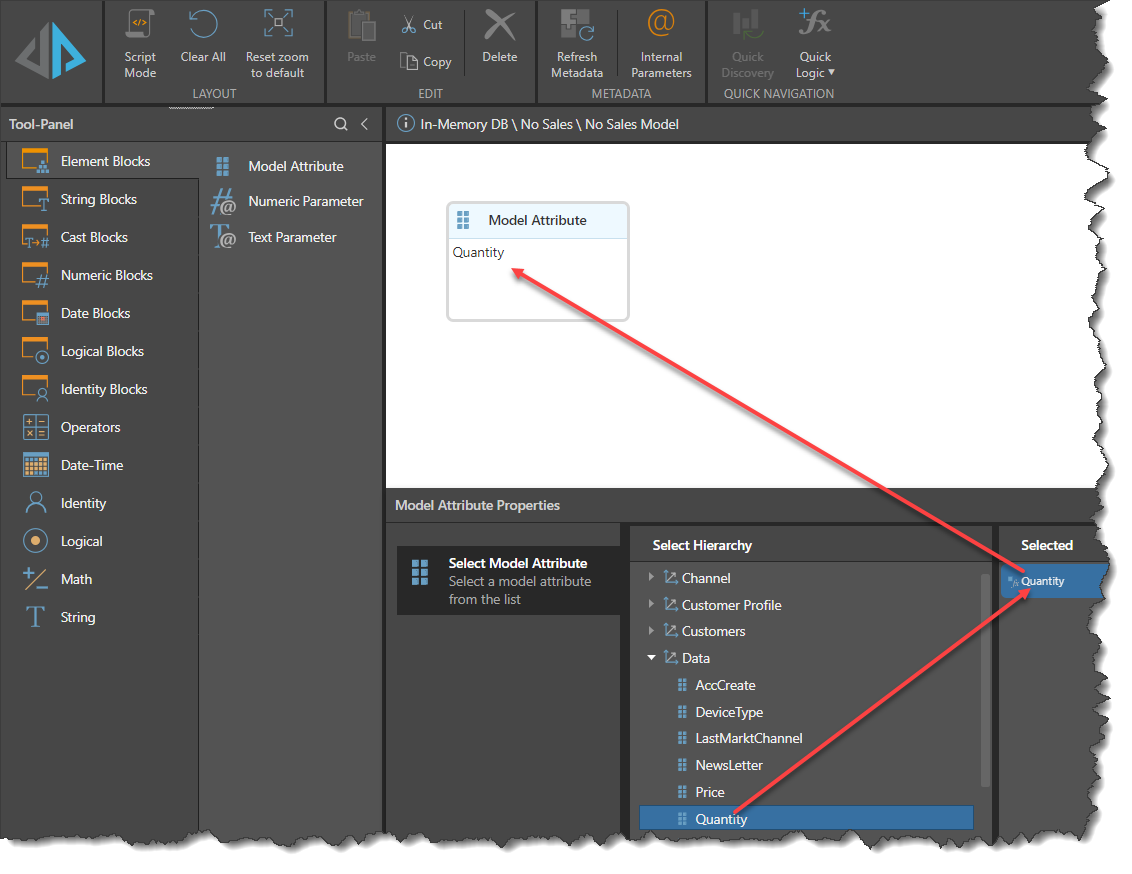
From the Model Attributes Properties panel, choose the Attribute required by clicking it. This populates the block with the attribute details. In this case, open the Data Dimension Table and click [Quantity].
Step 3
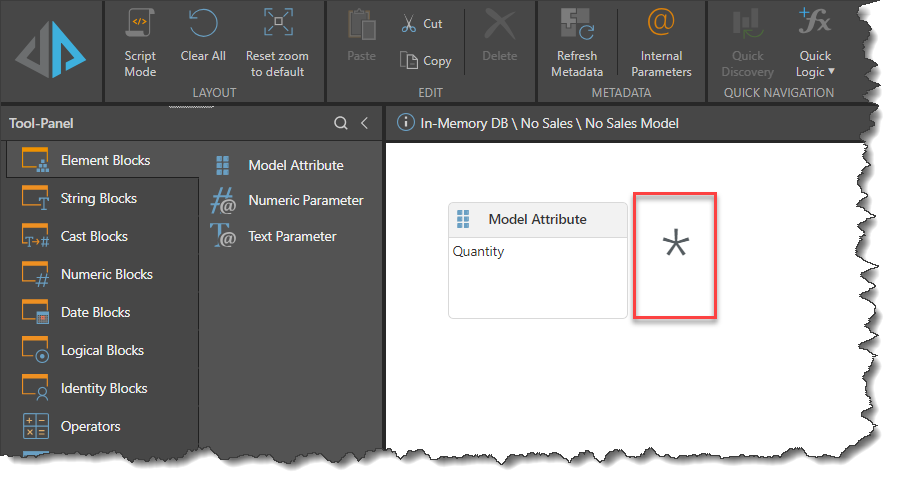
On the canvas, type the multiplication sign *:
Step 4
Drag another block onto the canvas and select [Price] from Data Dimension Table in the Attribute Properties Panel
Step 5
Click the Pyramid icon at the top-left to preview the results:
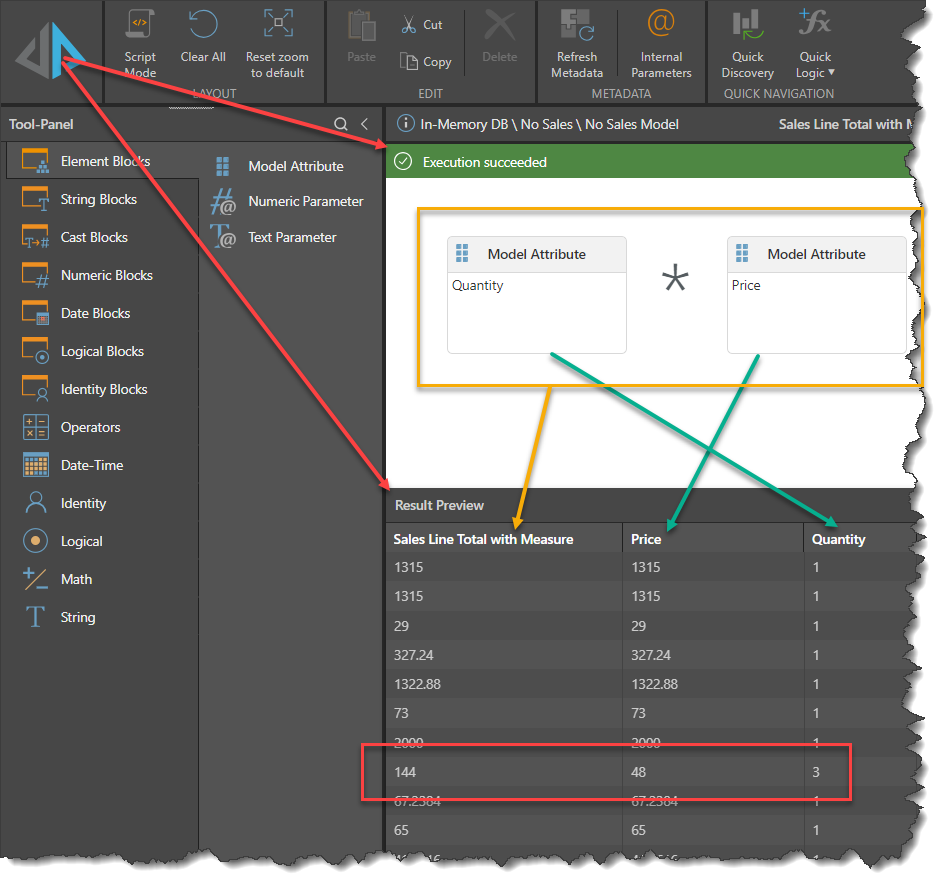
Note: The row highlighted in red, shows how the [Quantity] of 3 and [Price] of 48 give [Sales Line Total] of 144
Step 6
In the Measures Properties Panel, click on the blue + sign to add a Measure definition for this attribute and fill in the required values.
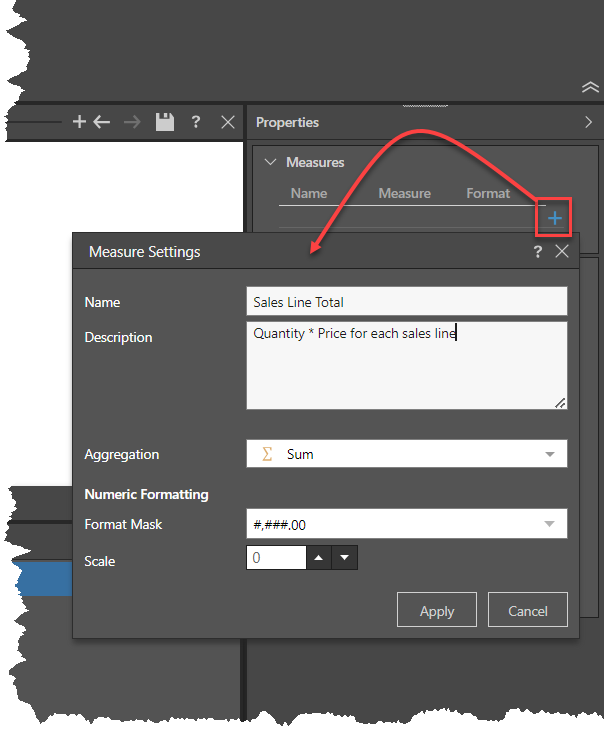
See Creating Measures for more details on Measure Settings. Multiple Measures may be defined from the same attribute with different aggregation rules.
Step 7
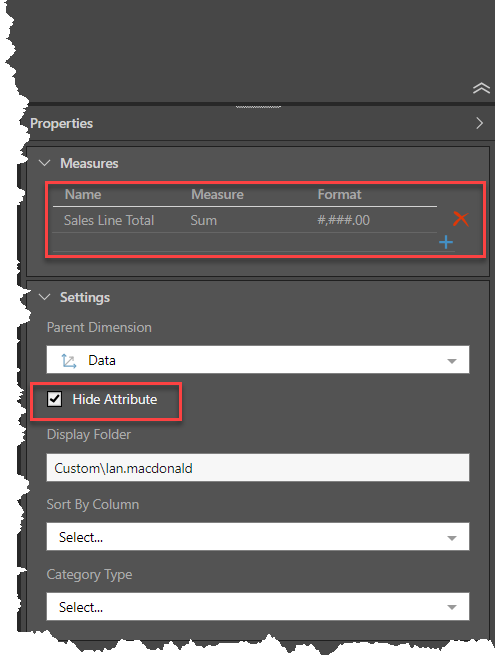
Set the values in the Settings Panel to reflect the requirements of the new attribute. Quite frequently when designing new Measures, the resulting attribute is hidden as this will be used to aggregate values rather than show individual values as Members of a Attribute.
Step 8
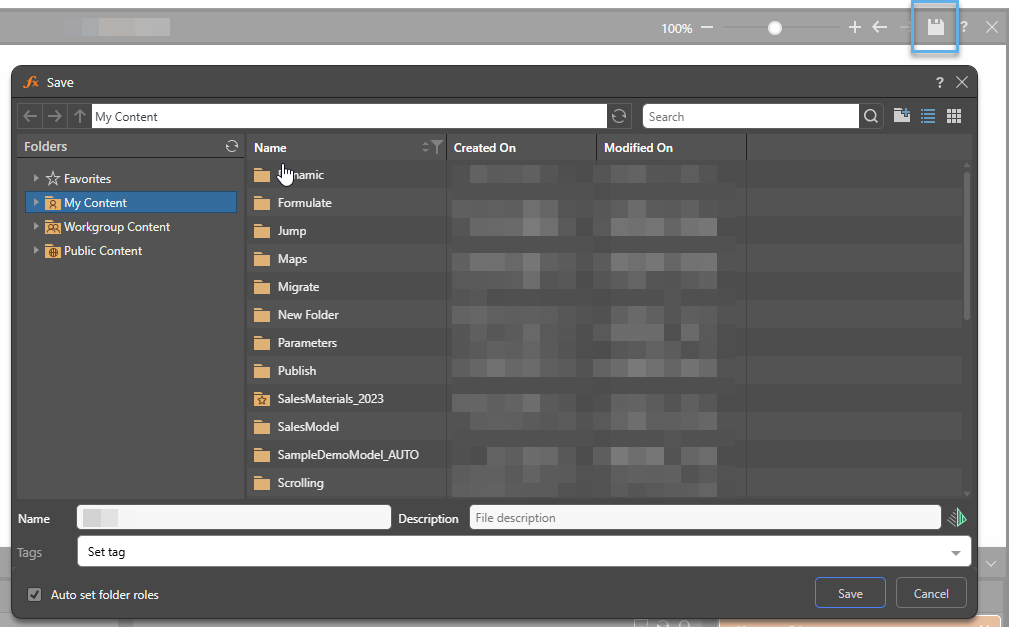
Click Save to save into the target folder with your chosen name. Note: This will be the attribute name, the Measure name is defined in the Measures panel.
Step 9
Click Quick Discover in the Ribbon to see the new Measure in a Discover view. The new Measure will appear as a new calculated Measure in the Custom Measures Panel.